

Generating a tax invoice is an essential task for businesses registered under the Goods and Services Tax (GST) system in India. A properly prepared tax invoice helps businesses maintain accurate accounting records, calculate GST correctly, and meet applicable tax compliance requirements. Tally Prime is widely used by businesses, accountants, and tax professionals to record sales transactions and generate GST invoices. Once the company, customer, sales ledger, stock items, and tax details are configured correctly, creating an invoice becomes a straightforward process. In this guide, you will learn how to generate a tax invoice in Tally Prime, configure GST settings, enter sales details, verify tax calculations, and print or share the final invoice.
What Is a Tax Invoice? A tax invoice is a document issued by a supplier for taxable supplies of goods or services. It records the transaction details, taxable value, applicable GST, and the amount payable by the customer.
Under GST, registered suppliers making taxable supplies generally need to issue tax invoices in accordance with the applicable provisions of the CGST Act and Rules.
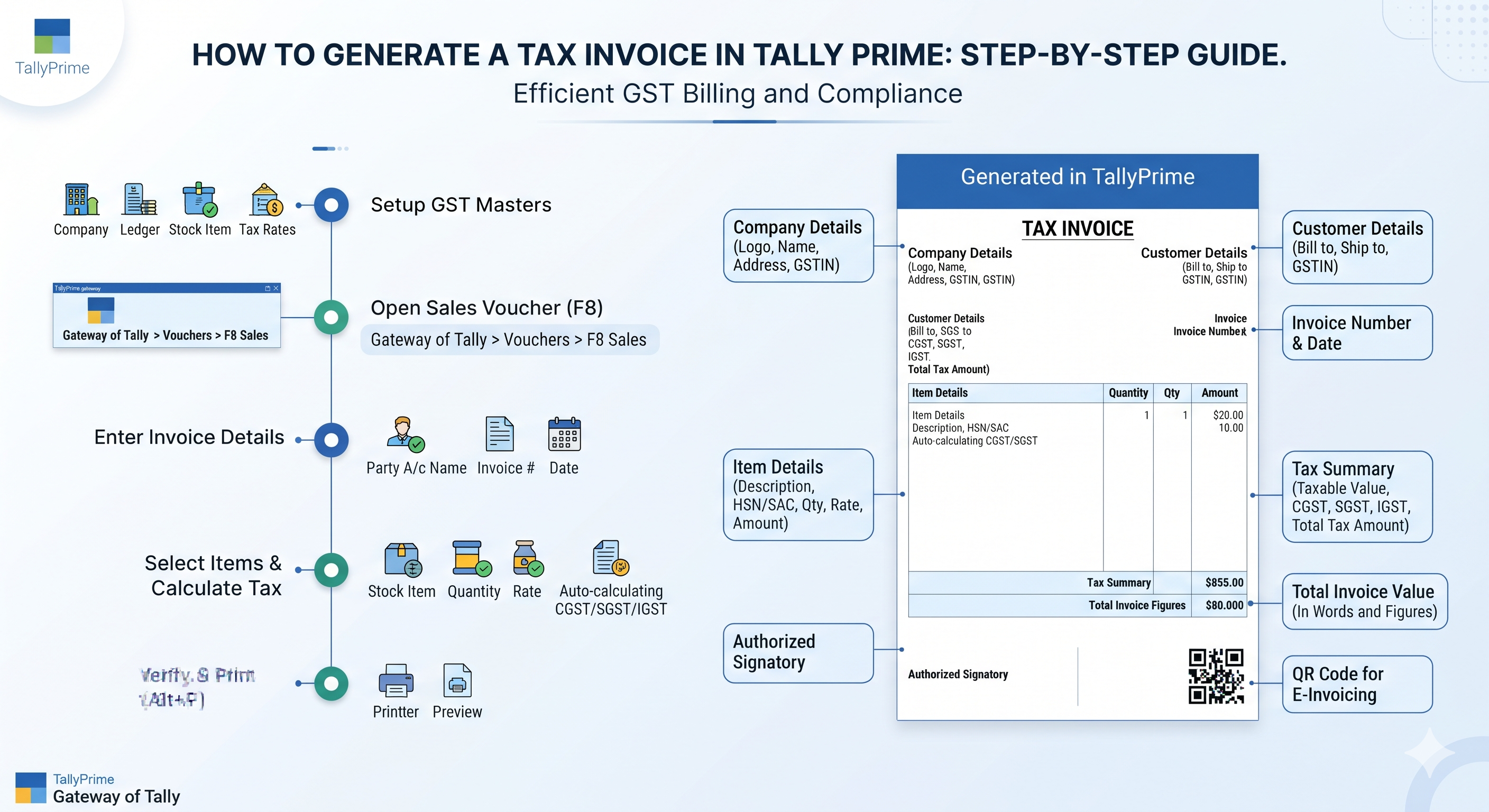
A GST tax invoice typically includes:
Supplier's business name, address, and GSTIN
A unique, consecutive invoice number and invoice date
Customer's name, address, and GSTIN, where applicable
HSN code for goods or SAC code for services, as applicable
Description, quantity, and value of goods or services
Taxable value and applicable GST rate
CGST and SGST, or IGST, as applicable
Total invoice value
Other prescribed details, where applicable
The exact invoice requirements may vary depending on the nature of the transaction and applicable GST rules.
Prerequisites for Creating a Tax Invoice in Tally Prime Before creating a GST invoice, ensure that your accounting software is configured correctly.
-
Set Up Company GST Details Enter your business information, including the registered business address, state, GSTIN, and other applicable registration details.
-
Create Customer Ledgers Create customer accounts with the correct name, address, state, registration type, and GSTIN, wherever applicable.
-
Configure Sales Ledgers Create or configure the appropriate sales ledger and ensure that GST applicability is correctly specified.
-
Create Stock Items or Service Ledgers For goods, configure stock items with the appropriate HSN code and GST rate. For services, configure the relevant service ledger with the applicable SAC code and tax details.
-
Verify GST Ledgers Ensure that the appropriate tax ledgers, such as CGST, SGST, IGST, and cess where applicable, are configured correctly.
These settings help Tally Prime calculate tax accurately when you record a sales transaction.
How to Generate a Tax Invoice in Tally Prime Follow these steps to create a GST tax invoice.
Step 1: Open the Sales Voucher Open Tally Prime and select your company.
Navigate to the sales voucher screen using either method:
Press Alt+G, select Create Voucher, and choose Sales.
Alternatively, press F8 (Sales) from the voucher screen.
For an invoice containing stock items, choose Item Invoice mode. For services or accounting-only sales, use Accounting Invoice mode where appropriate.
Step 2: Enter the Invoice Number and Date Enter or verify the voucher number and date.
Tally Prime can use automatic voucher numbering, depending on your configuration. Ensure that the invoice numbering series is appropriate for your business and complies with applicable GST requirements.
Step 3: Select the Customer Choose the customer ledger in the Party A/c Name field.
Verify the customer's address, state, GSTIN, and registration details. For transactions involving different billing and delivery addresses, enter the applicable buyer and consignee information.
Correct customer details are important because the nature of the supply and place of supply can affect the GST treatment.
Step 4: Select the Sales Ledger Choose the appropriate sales ledger for the transaction.
Confirm that GST applicability and the ledger configuration are correct. The tax treatment should reflect the actual goods or services supplied.
Step 5: Add Goods or Services For goods, select the stock item and enter the quantity and rate.
For services, select the relevant service ledger and enter the amount in Accounting Invoice mode.
If you sell multiple products with different GST rates, add each item separately with its correct tax classification and rate.
Step 6: Verify GST Calculation Review the taxable value and GST amounts displayed in the sales voucher.
Generally:
CGST and SGST: Apply to qualifying intra-state supplies.
IGST: Applies to qualifying inter-state supplies.
The correct treatment depends on the nature of the supply and the applicable place-of-supply rules. Do not rely on the customer's state alone in situations where special rules apply.
Check the tax rate, HSN or SAC details, and total invoice value before proceeding.
Step 7: Save the Tax Invoice After reviewing the entries, press Ctrl+A to save the sales voucher.
Your sales transaction is now recorded in TallyPrime. You can reopen the voucher to review or modify it, subject to your accounting controls and applicable requirements.
How to Print a Tax Invoice in Tally Prime Once the sales voucher is saved, you can print the invoice.
Open the saved sales voucher.
Press Alt+P to open the printing options.
Select the current invoice and review the print preview.
Verify the supplier details, customer information, invoice number, item descriptions, tax breakup, and total amount.
Adjust the available print settings if required.
Print the invoice or use the available export or sharing options to provide it to the customer.
You can also customise supported invoice layouts to include your business logo, contact details, bank information, and other relevant fields.
Example of a GST Tax Invoice in Tally Prime Suppose a business sells goods worth ₹10,000 before GST at an illustrative GST rate of 18%.
Assuming the supply is eligible for the standard intra-state tax treatment:
Particulars Amount Taxable value ₹10,000 CGST at 9% ₹900 SGST at 9% ₹900 Total invoice value ₹11,800 For a qualifying inter-state supply at the same illustrative rate, IGST would be ₹1,800, resulting in the same total invoice value of ₹11,800.
Note: The 18% rate is used only for illustration. Always verify the applicable GST rate and tax treatment for the actual goods or services.
Common Mistakes to Avoid While Generating Tax Invoices Even with accounting software, incorrect configuration or data entry can lead to errors. Watch out for these common mistakes:
Incorrect GSTIN: Verify the supplier's and customer's registration details.
Wrong GST rate: Confirm the rate applicable to the actual goods or services.
Incorrect HSN or SAC: Use the appropriate classification and required level of detail.
Wrong tax type: Review whether CGST and SGST or IGST applies.
Duplicate invoice numbers: Maintain a proper invoice numbering sequence.
Missing mandatory information: Review the invoice against applicable GST requirements.
Incorrect invoice date or taxable value: Check the transaction details before saving.
Ignoring e-invoicing requirements: Determine whether your business and transaction are covered by the applicable e-invoicing rules.
Regularly reviewing sales registers and GST reports can help identify discrepancies before filing returns.
Benefits of Generating Tax Invoices in TallyPrime Using TallyPrime for GST invoicing offers several practical benefits:
-
Faster Invoice Creation: Save time by using configured customer ledgers, sales ledgers, and stock items.
-
Automated Tax Calculations: Correctly configured masters help calculate applicable GST amounts and display the tax breakup.
-
Better Accounting Records: Sales vouchers create structured records that support bookkeeping and reporting.
-
Convenient Invoice Printing: Generate printable invoices and customise supported invoice layouts.
-
Easier GST Reconciliation: Properly recorded transactions can help with reviewing GST reports and preparing return data.
These benefits depend on accurate setup, correct transaction entries, and appropriate review.
Frequently Asked Questions
-
How do I create a GST invoice in TallyPrime? Open the Sales voucher using F8, select the customer, enter the goods or services, verify the GST calculation, and save the voucher using Ctrl+A. You can then print the invoice using Alt+P.
-
Can I generate a tax invoice in Tally without inventory? Yes. Businesses that do not maintain stock records can generally use Accounting Invoice mode and record the sale through the appropriate service or sales ledger.
-
Does TallyPrime calculate GST automatically? TallyPrime can calculate GST based on the configured company, customer, ledger, item, and transaction details. Incorrect settings can lead to incorrect tax calculations, so review the invoice before issuing it.
-
How can I print a GST invoice from TallyPrime? Open the sales voucher, press Alt+P, review the print preview and invoice details, and select the appropriate printing option.
-
Can I create invoices for interstate sales in TallyPrime? Yes. TallyPrime supports recording interstate sales. Configure the transaction correctly and verify the place of supply and applicable IGST treatment.
-
Is generating a tax invoice the same as generating an e-invoice? No. A regular GST tax invoice and a GST e-invoice are not the same process. Where e-invoicing requirements apply, the invoice details must be reported to the authorised Invoice Registration Portal (IRP) to obtain the required Invoice Reference Number (IRN) and signed QR code.
- Can I customise the tax invoice format in TallyPrime? Yes. Supported print configuration options allow you to customise various invoice elements, such as the layout, logo, and displayed information.
Conclusion Generating a tax invoice in TallyPrime is straightforward when your company GST settings, customer ledgers, sales ledgers, stock items, and tax rates are configured correctly. By following the steps outlined above, businesses can record sales, verify GST calculations, and print professional invoices.
However, accurate invoicing requires more than entering transaction details. Businesses should verify GST classification, invoice particulars, place of supply, and any applicable e-invoicing obligations before issuing an invoice.
Looking for professional accounting, GST, or TallyPrime support? Consult a qualified accounting or tax professional to ensure that your invoicing process aligns with the requirements applicable to your business.